SAP Digital Payments Add-On (DPAO)
The Worldpay B2B Paymetric Adapter allows you to facilitate secure, end-to-end processing of digital payments.
Key Terms
Review the following key terms to help with your understanding of the setup, configuration, and administration of SAP Digital Payments Add-On in Merchant Portal.
Customer
An organization with a signed contract to process payments using SAP digital payments add-on.
Payment Service Provider
An organization that processes payments triggered by a customer. If handling credit card data, will be subject to PCI DSS regulations.
Tenant
A grouping of data for one organization or legal entity. A customer will usually only have one tenant in an individual data center. The number of tenants a customer has will therefore vary in accordance with the number of data centers the customer wants to use.
-
In SAP digital payments add-on, this is the Tenant ID and the Tenant Subdomain.
-
In Merchant Portal, the tenant can have multiple merchant accounts. This is the Merchant ID.
Supported Payment Functions
-
Card Registration (supports eCheck and Credit Card payment methods)
-
Pre-Authorization during Registration supported for Credit Card payment methods
-
-
Authorization (supports 3DS using Worldpay 3DS Flex)
IMPORTANT: For Paymentech Salem with 3DS, only Visa and MasterCard are supported. -
Pre-Authorization
-
Authorization Cancellation (void)
-
Settlement (capture with authorization)
-
Settlement (capture) with Level 2 / Level 3 Data
-
Refund
-
Blind Credit
Supported Cartridges
-
WPG
-
FDMS North
-
Paymentech Salem
IMPORTANT: For Paymentech Salem with 3DS, only Visa and MasterCard are supported. -
VAP
Prerequisite Configuration Steps
All services must first be enabled by Paymetric internally in the Merchant Profile (a.k.a wizard) so they display under Settings. The following prerequisite configurations must be done in this order before you can configure the SAP Digital Payments Add-On.
-
If implementing XiSecure token format: Create and onboard XiSecure Client if you do not currently have one.
-
Set up the Token Exchange Service for TMS:
-
Create the Security Token Service first.
-
Then, create a Security Token Service for each token type you are implementing. For existing XiSecure customers, you will select the existing Client/DSP when creating the Profile. For Paymetric XiPay tokens, use the values/file obtained above.
-
Process onboarding request for TES.
-
-
Intercept eCommerce: Security Token Service.
-
For existing customers, If you have existing integrations that do not go through TMS, you should create a separate Merchant in Merchant Portal for DPAO onboarding.
-
Otherwise, any existing integrations must be updated to integrate to TMS. For more information, refer to the Intercept eCommerce TMS Integration document.
-
-
If implementing 3DS Flex for Digital Payments Add-On: Get the 3DS configuration fields from the 3DS Flex onboarding team.
-
If implementing the Payment Page for Digital Payments Add-On: Configure/onboard the Payment Page in SAP. For details how to integrate with the Payment Page, please go to SAP.
-
If implementing PayPal Checkouts: To enable PayPal as a payment method, an account with PayPal is required. This needs to be onboarded on your account with Worldpay. Contact your Relationship Manager for help.
NOTE: If implementing 3DS Flex for Digital Payments Add-On: Get the 3DS configuration fields from the 3DS Flex onboarding team. This applies to both the Payment Page and the non-payment page. -
-
Continue to the following procedure.
Data Needed to Configure SAP Digital Payments Add-On
You must have all the data listed below to configure SAP Digital Payments Add-On.
-
Paymetric XiPay Merchant Account Information – Establish accounts and obtain the following values:
-
Merchant ID (XiPay Routing MID)
-
Merchant Username (XiPay WSA username)
-
Merchant Password (XiPay WSA password)
-
-
Tokens/TMS Setup Information – Merchant Identifier or Shared Key from the TES Profile
-
SAP Digital Payments Add-On – Set up/onboard Digital Payments Add-On in SAP. After onboarding, you will use the following values in Merchant Portal:
-
Tenant ID
-
Tenant Subdomain
-
Configure Worldpay B2B Paymetric Adapter
-
Select SAP Digital Payments Add-On Profiles under the Settings menu for the Merchant. You can also access this from the Merchant Settings dashboard.
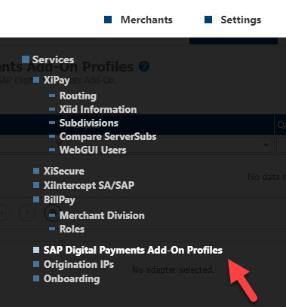
-
To add a profile, click add. To edit an existing DPAO profile, select the profile and click edit.

-
To configure a profile:
-
Enter a Name.
-
Select B2B Adapter (SAP DPAO) from the Adapter drop-down list.

-
-
General: For each configuration, enter the QA and Production values:
NOTE: For all Digital Payments Add-On profiles that are configured for a given Merchant, the following fields should be configured with the same values: Tenant Id, TMS Profile Name, Tenant Subdomain, TMS Merchant Identifier, and TMS Shared Key.Tenant Plan
The type of SAP tenant. You cannot change this field.
Supported Registration Payment Types
Configure the supported registration payment types for a DPAO profile. Values include:
-
American Express
-
Diners Club
-
Discover
-
JCB
-
MasterCard
-
UnionPay
-
Visa
-
eCheck
NOTE: For the Merchant to use the configured supported payment types for a given profile, the Merchant must configure the following on SAP's PSP Determination page.-
Card Registration Context field with the applicable Merchant Account of the adapter profile.
If the Merchant does not provide the Card Registration Context, the registration page will display a default list of payment types:
-
American Express
-
Diners Club
-
Discover
-
JCB
-
MasterCard
-
UnionPay
-
Visa
Support Pre-Authorization during Registration
Enables support for Pre-Authorization during Registration for Credit Card payment methods. The default value is Disabled.
Support 3DS
When enabled, see the 3DS section for additional configurations.
-
-
Payment Page Configurations:
Support Payment Page
Enables support for the Payment Page. When enabled, the Supported Card Types and the Supported APMs fields will be enabled.
Supported Card Types
Configure the card types for the Payment Page, which are completely separate from the Supported Registration Payment Types.
Values include:
-
American Express
-
Diners Club
-
Discover
-
JCB
-
MasterCard
-
UnionPay
-
Visa
NOTE: If a merchant wants to enable eCheck payments on the Payment Page, the merchant only needs to configure this within SAP.Supported APMs
Configure the APMs for the Payment Page. When enabled, see the PayPal section for additional configurations.
NOTE: To enable PayPal as a payment method, an account with PayPal is required. This needs to be onboarded on your account with Worldpay. Contact your Relationship Manager for help. -
-
Merchant Account
Enter the Merchant Account (XiPay Routing MID).
User Name
Enter the User name (XiPay WSA user name).
Password
Enter the Password (XiPay WSA password).
-
SAP Configurations:
Tenant Id
The SAP Tenant ID. You must use the same Tenant Id if you are creating multiple profiles.
IMPORTANT: For more information, refer to the SAP Digital Payments Add-On Account Setup documentation.Tenant Subdomain
The name of the SAP Tenant Subdomain used to identify the tenant. You must use the same Tenant Subdomain if you are creating multiple profiles.
IMPORTANT: For more information, refer to the SAP Digital Payments Add-On Account Setup documentation. -
TMS Configurations:
Profile Name
The name for the Token Exchange Service profile. This must be enabled in the Security Token Service. You must use the same TMS profile name if you are creating multiple profiles.
Merchant Identifier
Enter (or copy and paste) the Merchant Identifier from the TES Profile. You must use the same TMS Merchant Identifier if you are creating multiple profiles.
Shared Key
Enter (or copy and paste) the Shared Key from the Security Token Service. You must use the same TMS Shared Key if you are creating multiple profiles.
3DS
-
Merchant Code
Enter the Merchant Code.
Username
Enter the Username.
Password
Enter the Password.
External Acquirer Reference
Enter the External Acquirer Reference.
-
Cardinal Credentials:
Org Unit ID
Enter the Org Unit ID.
API Identifier
Enter the API Identifier.
API Key
Enter the API Key.
-
NOTE: This section only appears when PayPal is enabled under the Supported APMs configuration in the Payment Page Configurations section.
Merchant Code
Enter the Merchant Code.
Username
Enter the Username.
Password
Enter the Password.