Notifications
Provides the ability to send a Buyer notification via email and/or print to mail (depending upon the functionality that is enabled).
Key points and considerations
Following are some key points regarding the Buyer Notifications page:
-
The page is only available if Buyer Notifications are enabled.
-
All Buyers display in the dropdown regardless of whether they are enabled for Buyer Notifications.
-
Notifications can be sent from Invoice Details page and the Buyer Notifications Report.
-
You can send multiple Invoices in a single email notification from the Buyer Notifications Report page.
-
If an invoice does not have an associated document record, then there is no PDF available and a generic email with a link to the selected invoice(s).
How to use
To access Send Notifications pop-up dialog box:
-
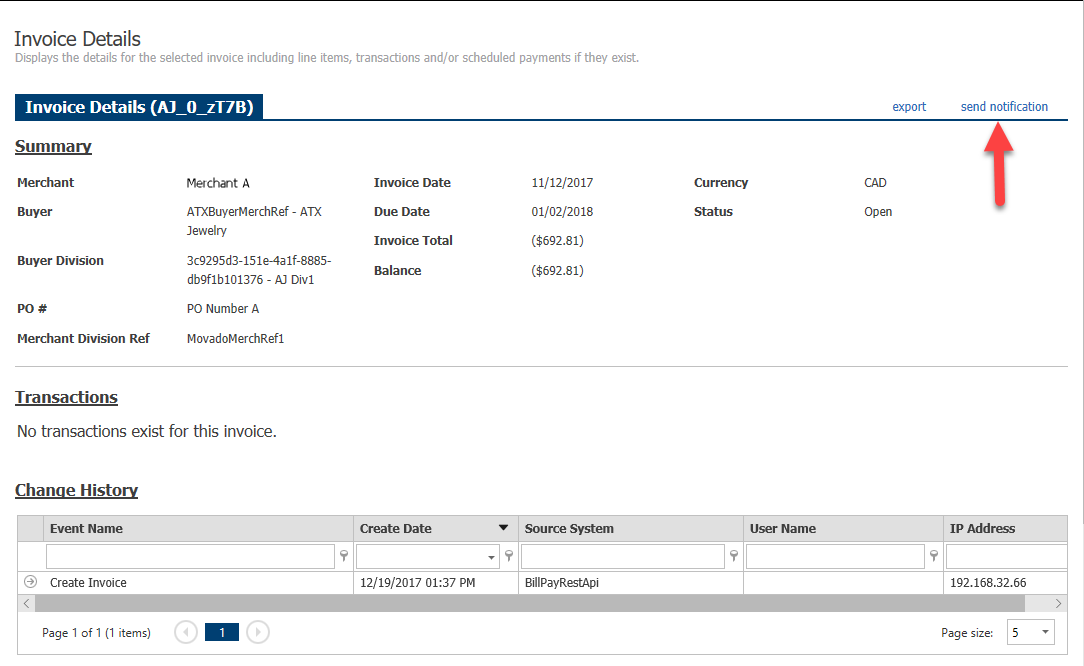
From Invoice Details page, click send notification link.
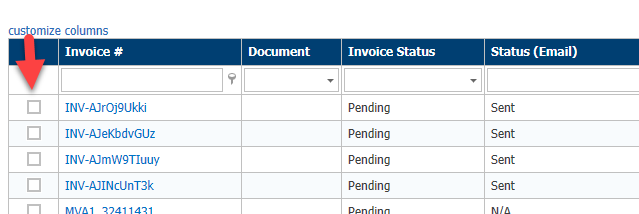
From Buyer Notifications Report, select the checkbox to the left of the desired Invoice #s.
-
In the Select Notifications pop-up dialog box, select desired notification method: Email Notification or Print to Mail.
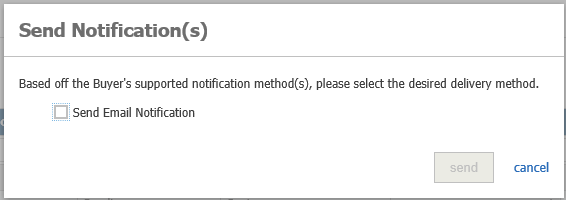
In the example above, only Email Notifications are supported.
-
Click send after the desired method is selected.